I’ve been wrong about technology before.
In the late 1980s, I sat in front of a computer and said — out loud, with full conviction — “Who on planet earth needs a mouse?” The keyboard was everything. The mouse was a toy for people who couldn’t type.
I was spectacularly wrong.
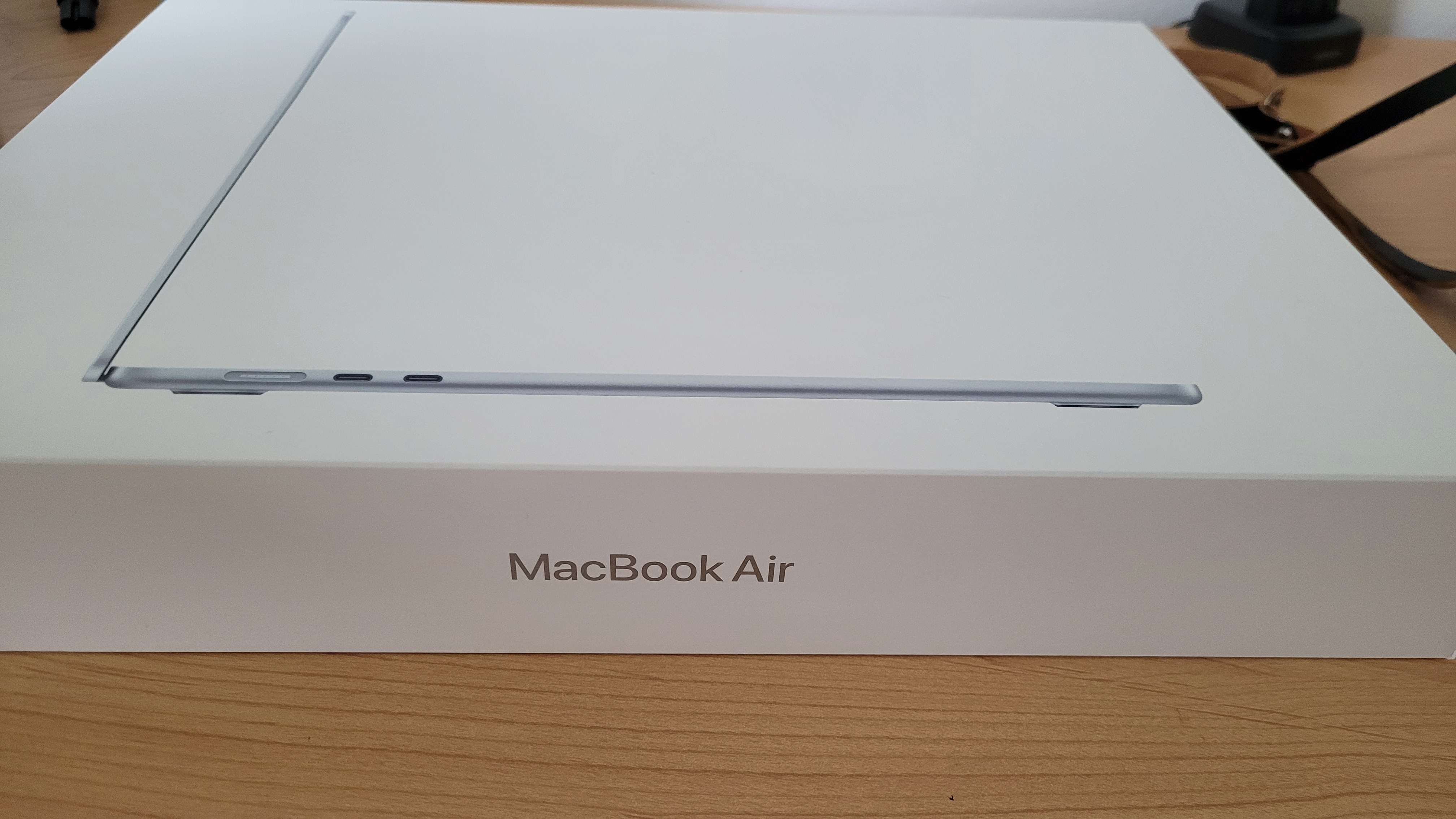
And now, after decades on Windows — through DOS (TRSDOS, NewDos80, CP/M 3.0, Unix - was still better than DOS for until 1993), through 3.1, through every version up to 11 — I’ve done something I genuinely never expected: I switched to a Mac.
Not because Windows failed me. Not because Apple marketing finally got to me. But because my workflow demanded it, and I was tired of fighting the toolchain instead of making photographs.
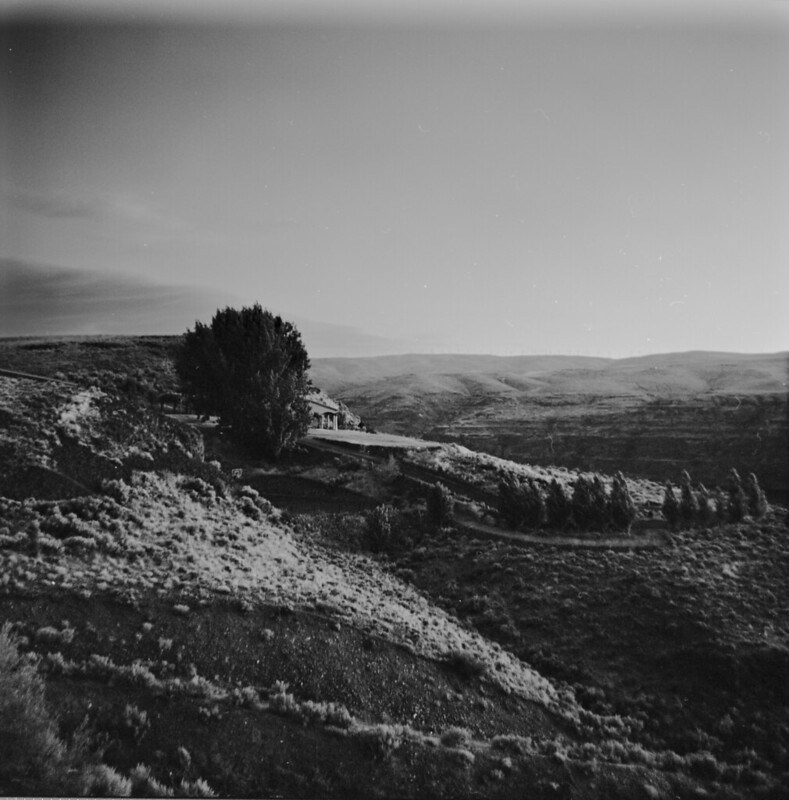
I’m an analog photographer. Medium format film, scanned on an Epson V800, edited in Lightroom Classic, archived on a Synology NAS. My entire digital life — film scans, family photos, video projects, blog files — runs through that NAS. It’s my private cloud, my backup hub, my Plex server, and my Synology Photos platform for sharing with family.
Windows in combination with OneDrive (not useable for photographers anymore) became painful, slow, disrupted by agents - in short: an OS not designed for a creative user anymore.
When I decided to move from Windows to macOS, I expected the hard part to be learning a new operating system. I remember when I joined TechReady in 2003 together with my friend Arne we went into an Apple store and I thought: oh boy, who designed that OS, it’s so bad and not intuitive. I was wrong about that too.
The hard part was the migration. Here’s the backstory.
How To Guide and Path to Success
This guide documents a complete storage architecture and migration plan for analog and digital photographers moving from a Windows workflow to macOS, using a Synology NAS as the central hub. It covers Lightroom Classic catalog migration (including a critical macOS bug and its workaround), Synology Drive integration, Premiere Pro video workflow, Synology Photos, and a three-tier backup strategy.
The architecture was developed for a medium format film photographer using Lightroom Classic, an Epson V800 flatbed scanner, and Negative Lab Pro — but the principles apply to any NAS-centric photography workflow.
Hardware: MacBook Air M5 / 1TB SSD / 32GB RAM + Synology NAS (2× 8TB) Principle: NAS as private cloud and source of truth. Synology Drive syncs to Mac (on-demand or full). Cloud as safety net. Date: April 2026
Architecture Summary
| Tier | Role | What lives here |
|---|---|---|
| Tier 0: Mac SSD | Active editing | LR catalog (local only), Synology Drive synced folders (Photography, Videos, Premiere) |
| Tier 1: NAS RAID | Private cloud | All masters — film RAW, video, personal photos, projects. Synology Photos. Plex. Source of truth. |
| Tier 2: Off-site cloud | Safety nets | Backblaze B2 (full NAS via Hyper Backup), OneDrive 1TB (Photos + Videos via Cloud Sync) |
MacBook Local Structure
~/Videos/) — it must be a subfolder like ~/Videos/Local-Videos/. A reboot after initial setup may be needed for folder names to display correctly in Finder.
~/Pictures/
├── Lightroom/
│   └── Catalog/                            ← .lrcat (local only — NOT in Synology Drive)
├── Local-RAW-Files/                        ← Synology Drive ↔ NAS /Photography/RAW Files/
│   ├── Pentacon Six TL/
│   │   ├── R37-0000/
│   │   └── ...
│   ├── Zeiss Ikon Ikonta/
│   ├── Zeiss Ikon Contina IIa/
│   └── Holga 120 GCFN/
├── Exports/                                ← LR export landing zone (temp)

~/Adobe Premiere Projects/
├── Premiere-Projects/                      ← Synology Drive ↔ NAS /Adobe Premiere Projects/

~/Videos/
├── Local-Videos/                           ← Synology Drive ↔ NAS /Videos/
No OneDrive client on Mac. O365 installed for apps only.
Synology Drive Client — three confirmed sync tasks (all two-way):
| # | NAS path | Mac local path |
|---|---|---|
| 1 | My Drive/Photography/RAW Files |
~/Pictures/Local-RAW-Files/ |
| 2 | My Drive/Adobe Premiere Projects |
~/Adobe Premiere Projects/Premiere-Projects/ |
| 3 | My Drive/Videos |
~/Videos/Local-Videos/ |
smb://[NAS-IP]/home/) or via the Synology Drive web interface. They're export destinations, not working folders.Similarly,
Photos/ (Synology Photos personal space) is a one-way destination — you push exports to it, but it doesn't sync to the Mac.
NAS Directory Structure
/homes/[username]/
├── Photography/                            ← ANALOG FILM WORKFLOW (separate from Synology Photos)
│   ├── RAW Files/                          ← Film scan masters
│   │   ├── Pentacon Six TL/
│   │   │   ├── R37-0000/                   ← Roll#-LabNr (roll first, lab for cross-ref)
│   │   │   │   ├── Pentacon Six R37 001-positive.tif
│   │   │   │   ├── ...
│   │   │   │   └── R37.pdf                 ← Contact sheet (stays with the roll)
│   │   │   └── ...
│   │   ├── Zeiss Ikon Ikonta/
│   │   ├── Zeiss Ikon Contina IIa/
│   │   └── Holga 120 GCFN/
│   ├── Projects/                           ← Publication exports (zines, blog)
│   │   ├── 2025-01-From My Front Door/
│   │   ├── 2026-03-Doors of Perception Vol 2/
│   │   └── ...
│   ├── SAAL Print/                         ← Curated exports for print ordering
│   │   ├── Grand Canyon/
│   │   ├── Zion/
│   │   └── (next order topic)/
│   ├── Portfolio/                          ← Curated art exports (blue label)
│   │   ├── Full/                           ← Full-res JPEGs
│   │   └── Watermarked/                    ← Flickr-ready with watermark
│   ├── Collected Zines/                    ← Collected zines from photographer friend
│   └── Lightroom Backup/
│
├── Photos/                                 ← Synology Photos personal space
│   ├── MobileBackup/                       ← Android auto-upload
│   ├── 2025-04 Spring Trip Oregon/
│   │   ├── (all photos flat — no device subfolders)
│   │   └── Edits/
│   └── ...
│
├── Videos/                                 ← Consolidated video archive
│   └── [Event Name]/
│       ├── RAW/Day 1 - YYYY-MM-DD/
│       ├── Edits/
│       ├── Stills/
│       └── Trailers/
│
├── Premiere Projects/                      ← .prproj files (synced via Drive)
├── Drive/                                  ← Blog/, Documents/, Light Exports/
Family Videos/ (duplicate shared folder) +
Photos/OneDrive Videos/ (OneDrive sync artifact) +
Adobe Premiere Projects/[RAW] (scattered RAW footage) +
Photos/OneDrive Photos/ (OneDrive sync artifact).
All content reunited under Videos/ and Photos/.
Photos/ is the Synology Photos personal space. Only content here is visible in Synology Photos. Photography/ is outside its scope.
Flat photo folders going forward. No device subfolders. EXIF + Synology Photos filtering replaces folder-based device separation. Only subfolder:
Edits/.Videos — consolidated. Plex reads directly from
Videos/*/Edits/.Legacy folders: Leave old naming as-is. Enforce new structure going forward only.
Sync Channels
Cloud Sync (NAS → OneDrive, one-way)
Two tasks only:
| Task | NAS path | OneDrive path |
|---|---|---|
| Photos | /home/Photos |
/Photos |
| Videos | /home/Videos |
/Videos |
Not synced to OneDrive: Photography/ — too large, covered by Hyper Backup to B2.
Settings: “Upload local changes only”, “Don’t remove from destination” (during migration).
Synology Photos
Indexes /homes/[username]/Photos/ only. Albums reference content within this space. Shared with family via album sharing. Film exports for family sharing go to Photos/YYYY-MM-DD Event Name/. Zine work stays in Photography/Projects/.
Albums survive folder moves — Synology Photos uses internal file IDs, not paths.
Hyper Backup (NAS → Backblaze B2)
Primary off-site backup for the entire NAS. Replaces Azure Blob Storage (significantly cheaper, better egress fees). Covers everything OneDrive cannot — including all film RAW masters and video RAW footage.
Lightroom Film Scanning Workflow
Epson Scan 2 Settings (V800)
B&W scanning (saved preset: “Negative Scan B&W”):
| Setting | Value |
|---|---|
| Mode | Photo Mode |
| Document Type | B&W Negative Film |
| Image Type | 16-bit Grayscale |
| Resolution | 6400 DPI |
| Scanning Quality | High |
| Image Format | TIFF |
Color scanning:
| Setting | Value |
|---|---|
| Mode | Photo Mode |
| Document Type | Color Negative Film |
| Resolution | 4800 DPI |
| Scanning Quality | High |
| Image Format | TIFF |
The V800 is 6400 DPI native optical resolution — not interpolated. This is Epson's flagship flatbed scanner.
Scanning workflow
- Mount film in Lomography DigitaLIZA 120 Scanning Mask
- Scan with Epson V800 + Epson Scan 2 on Mac
- Save TIFFs to
~/Pictures/Local-RAW-Files/[Camera]/R##-LabNr/ - Synology Drive syncs to NAS
/Photography/RAW Files/automatically - Import into Lightroom (Add mode, no auto-adjustments, apply NLP camera preset)
- NLP conversion, crop, metadata, naming — all local, full SSD speed
Color Label Workflow
Metadata → Color Label Set → Edit...
Red: Original Negative
Yellow: Correction Needed
Green: Good to Use
Blue: Portfolio
Purple: To Print
If labels show as grey after migration, the set doesn't match — recreate it before reviewing images.
| Label | Status | Can export to |
|---|---|---|
| Red | Reference only | — |
| Yellow | Needs work — fix, then relabel | — |
| Green | Good to use | Photos/ (family sharing), Blog/ |
| Blue | Portfolio — best work (screen/web optimized) | Portfolio/, Photos/, Projects/, Flickr |
| Purple | Print-ready — proof-adjusted for SAAL silk paper + ICC profile | SAAL Print/ |
Tracking prints: Add keyword Printed after ordering from SAAL Digital. Smart collections: “Ready to print” = Purple + no “Printed” keyword. “Portfolio” = Blue label.
Exporting from Lightroom
All exports land in ~/Pictures/Exports/ first, then move to NAS:
| Destination (NAS) | Purpose | Typical label |
|---|---|---|
Photography/Portfolio/Full/ |
Full-res portfolio archive | Blue |
Photography/Portfolio/Watermarked/ |
Flickr, web sharing | Blue |
Photography/SAAL Print/[order topic]/ |
Print orders (proof-adjusted for silk paper) | Purple (virtual copy) |
Photos/YYYY-MM-DD Event Name/ |
Family sharing via Synology Photos | Green or Blue |
Photography/Projects/YYYY-MM-Title/ |
Zine publications | Blue (project-driven) |
Blog/images/ |
Website blog posts | as needed |
Filename convention: Title R##-###.jpg (e.g., Clouds over Deep Time R35-013.jpg). Title is the published name, R##-### traces back to the master TIFF. Consistent across all destinations.
Virtual Copies
Create virtual copies for genuinely different interpretations of the same master:
- B&W conversion of a color original (e.g., Sedona Kodak Gold CPL recovery shots)
- Print preparation — virtual copy of a Blue image, soft-proofed against SAAL’s ICC profile for silk paper, labeled Purple. The Blue original stays screen-optimized, the Purple copy carries print-specific adjustments.
- Significantly different crop or tonal treatment for a specific publication
Both reference the same master TIFF — zero disk space cost. Apply color labels independently. Delete scratch experiments to avoid catalog clutter.
Negative Lab Pro Metadata Presets
Presets don't survive Windows → Mac migration. Recreate on Mac: Metadata panel → Preset dropdown → Edit Presets.
One preset per camera+lens. Apply per roll after import. Per-roll fields (Film Stock, Film ISO, Scan Equipment) filled in separately.
Pentacon Six TL — Biometar 80: Camera Make: VEB Pentacon Dresden, Camera Model: Pentacon Six TL, Lens Make: Carl Zeiss Jena, Lens Model: Biometar 80mm f/2.8, Film Format: 6x6, Scan Method: Home Scan, Film Holder: Lomography 120 Film Mask.
Pentacon Six TL — Biometar 120: Same as above, Lens Model: Biometar 120mm f/2.8.
Pentacon Six TL — MIR 38B: Same camera, Lens Make: Arsenal, Lens Model: MIR 38B 65mm f/3.5.
Zeiss Ikon Ikonta 521/2: Camera Make: Zeiss Ikon, Camera Model: Ikonta 521/2, Lens Make: Carl Zeiss, Lens Model: Tessar 10.5cm f/4.5, Film Format: 6x9.
Zeiss Ikon Contina IIa: Camera Make: Zeiss Ikon, Camera Model: Contina IIa, Film Format: 35mm.
Holga 120 GCFN: Camera Make: Holga, Camera Model: 120 GCFN, Film Format: 6x6.
Per-roll fields: Film Stock (Ilford XP2 Super 400, Ilford FP4 Plus 125, Kodak Gold 200), Film ISO, Shot at ISO, Scan Equipment (Epson V800), Developed At, Developer.
Premiere Pro Video Workflow
- Import footage to NAS:
/Videos/[Event]/RAW/Day 1 - YYYY-MM-DD/ - Create Premiere project in
/Premiere Projects/(synced via Drive) - Open on Mac — Drive downloads files on demand
- Edit locally at SSD speed. Pre-pin RAW folder for heavy sessions.
- Export final video to NAS:
/Videos/[Event]/Edits/ - Plex auto-indexes from
Videos/*/Edits/
Revisiting old projects: open any .prproj, Drive pulls footage on demand. No manual download needed.
Migration Checklist
Phase 1: Prepare NAS
- Switch Cloud Sync to one-way (NAS → OneDrive)
- Configure Hyper Backup to Backblaze B2
- Run initial full backup to B2
- Keep Azure running in parallel
Phase 2: Consolidation (NAS runs 2× 8TB drives)
- Stop Cloud Sync tasks before moving folders
- Consolidate Videos/ — reunite scattered RAW, edits, duplicates
- Move Photos/OneDrive Photos/ up into Photos/ directly
- Move SAAL Print/ out of RAW Files/ to Photography/ level
- Create Photography/Portfolio/Full/ and Portfolio/Watermarked/
- Recreate Cloud Sync tasks for Photos and Videos
- Verify Synology Photos, Plex, albums all survive
Phase 3: Mac Setup (clean install)
Step 1: Initial setup
- Install Microsoft Edge — sign in, passwords/bookmarks sync automatically
- Install O365 apps (no OneDrive client)
Step 2: Synology Drive Client
- Install Synology Drive Client (v3.2+ for macOS 12.3+)
- Create three two-way sync tasks (see Mac Local Structure above)
- Wait for Local-RAW-Files/ initial sync to complete before proceeding
Step 3: Install Lightroom Classic
- Install via Adobe Creative Cloud
- Launch — creates fresh empty catalog
Step 4: Migrate Lightroom catalog
The standard migration (copy .lrcat to Mac, use "Find Missing Folder" to relink) fails with NAS paths — both Synology Drive CloudStorage and SMB. Lightroom throws "internal error – invalid path." Adobe Support unable to fix as of March 2026.
However, "Update Folder Location" works after Import from Another Catalog. The Export as Catalog → Import approach bypasses the broken dialog entirely.
Option A: Export as Catalog (tested and verified)
On Windows: File → Export as Catalog (check “Export negative files”). On Mac: File → Import from Another Catalog. All edits, labels, metadata immediately available. Then: Update Folder Location → ~/Pictures/Local-RAW-Files/[Camera]/ for each camera folder. Delete exported copies.
Option B: Relink on Windows first
Copy files locally on Windows → Update Folder Location → Back up catalog → Copy to Mac → Repoint to Synology Drive. Keeps single catalog intact. Mac repoint step not fully tested — fall back to Option A if it fails.
Step 5: Verify
- Recreate Custom Color Label Set on Mac (before reviewing images)
- Verify edits, collections, virtual copies
- Recreate NLP metadata presets (don't survive migration)
- Set catalog backup to Synology Drive-synced Lightroom Backup folder
- Install Negative Lab Pro, Epson Scan 2, Premiere Pro
Phase 4–8: Testing and Decommission
- Phase 4: Test full scan pipeline on Mac (V800 → LR → NLP → export)
- Phase 5: Test Premiere Pro with on-demand video from
~/Videos/Local-Videos/ - Phase 6: Set up Synology Photos albums for family sharing
- Phase 7: Verify all three Synology Drive tasks, Cloud Sync, and Hyper Backup to B2
- Phase 8: Decommission Windows — stop OneDrive, scan for local-only files, keep offline 30 days as safety net
Naming Conventions
| Element | Format | Example |
|---|---|---|
| Roll folder (new) | R##-LabNr | R37-0000/ |
| Roll folder (legacy) | Lab number | 7769/ — rename gradually via LR |
| Master TIFF | Camera R## ###.tif | Pentacon Six R37 001-positive.tif |
| Export JPEG | Title R##-###.jpg | Clouds over Deep Time R35-013.jpg |
| Contact sheet | R##.pdf (in roll folder) | R37.pdf |
| Photo project | YYYY-MM-Title | 2026-03-Doors of Perception Vol 2/ |
| Photo event | YYYY-MM-DD Event Name | 2025-10 Arizona - Grand Canyon/ |
| Video event | YYYY-MM Event Name | 2005-04 Anniversary Trip Spain/ |
| Lightroom title | Title R##|### | Clouds over Deep Time R35\|013 |
No Export subfolders in roll folders. JPEG exports go to destinations (Portfolio/, Projects/, SAAL Print/, Photos/). Contact sheet PDF stays alongside TIFFs.
Published April 2026 by Henry. Based on a real migration from Windows 11 to macOS with Synology NAS. All personal identifiers anonymized. Camera names, zine titles, and workflow details are real.
If you find value in my content, consider supporting me with a virtual coffee or a beer. Want a free month with Backblaze backup? Here is a referral link for you: https://secure.backblaze.com/r/04nq8a